
This is NCERT Class 12 Computer Science Chapter 12, Security Aspects — the chapter on malware, antivirus software, firewalls, cookies and network attacks, starting on page 222 of the official textbook. On this page you get the official chapter PDF to download, followed by a section-by-section walkthrough of every topic the chapter teaches, with each NCERT diagram explained.
Download the Security Aspects Class 12 NCERT PDF
Open the official Security Aspects Class 12 NCERT PDF published by NCERT at ncert.nic.in — it contains the full chapter text from page 222 onward, all of the chapter’s diagrams on malware, keyboards and network security, the two Activities, and the entire end-of-chapter exercise.
The textbook is published by NCERT, not CBSE, and this file is the official version straight from the NCERT portal, so it matches what is actually taught.
| What the chapter holds | Count | Where it is used |
|---|---|---|
| Printed pages | 18 | |
| Sections in the chapter | 26 | |
| Figures with NCERT captions | 6 | |
| Exercise questions | 17 | answered in our NCERT Solutions |
| Activities | 2 | |
| Official NCERT PDF | Download the chapter PDF | the chapter exactly as NCERT publishes it |
Security Aspects Class 12: Chapter at a Glance
The table below shows the size and shape of the chapter before you start reading it.
| What the chapter holds | Count |
|---|---|
| Sections | 26 |
| Figures | 6 |
| Activities | 2 |
| Exercise questions | 17 |
What This Chapter Covers, Section by Section
The chapter is built as threat followed by defence: each section names an attack, then the tool or habit that blocks it. These are the major blocks in NCERT’s order:
- Threats and Prevention (p. 223) — why a connected computer is exposed, and what network security means.
- Malware (p. 224) — the longest block: virus, worm, ransomware, trojan, spyware, adware, keyloggers, then how malware spreads and how to combat it.
- Antivirus (p. 230) — the five ways antivirus software identifies malware.
- Spam (p. 231) — unwanted junk messages, mostly email spam.
- HTTP vs HTTPS (p. 231) — plain vs encrypted data transmission.
- Firewall (p. 232) — the first barrier between a trusted private network and the outside.
- Cookies (p. 233) — what sites store on your computer, and which cookies are risky.
- Hackers and Crackers (p. 234) — white, black and grey hats, and hacktivists.
- Network Security Threats (p. 234) — DoS, DDoS, intrusion problems, snooping and eavesdropping.
Figure Walkthrough: The Six NCERT Diagrams in Chapter 12
The six figures are not decoration — each one carries a definition or a contrast you can be asked about. Read them in order, because two of them (the keyboards) are a comparison pair.

Figure 12.1 sits inside the ransomware section (12.2.3). It shows what ransomware does: it locks the user out of their own data or encrypts it, and demands a ransom against it. The chapter’s example is WannaCry, which infected nearly 200,000 computers across 150 countries in May 2017 by encrypting data and demanding payment in Bitcoin.

Figure 12.2 is the wooden horse from the siege of Troy. The trojan malware borrows its name from that story: it looks like a gift but carries something hostile inside. A trojan arrives disguised as legitimate software and, once a user installs it, can act like a virus or worm — but it never self-replicates and does not infect other files.
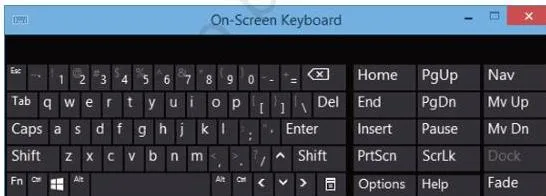
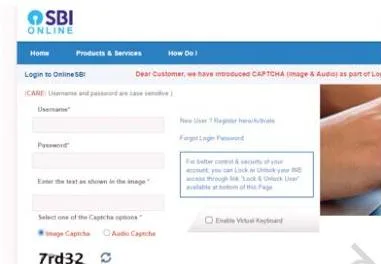
Figures 12.3 and 12.4 are a before-and-after pair. The first shows the fixed QWERTY layout your operating system’s on-screen keyboard uses — predictable key positions that sophisticated keylogger software can exploit.
The second shows an online virtual keyboard whose layout is randomised every time it is used, so even if a keylogger records where you clicked, those positions do not match the letters you actually typed.
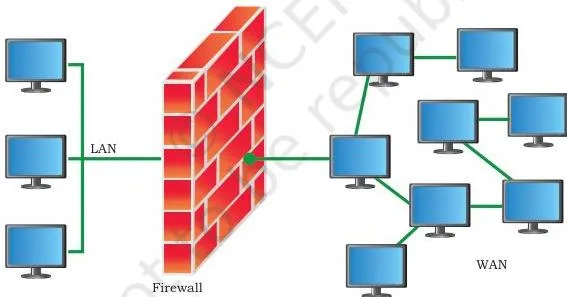
Figure 12.5 shows a firewall positioned between two networks. Every packet moving between the trusted private network and the untrusted outside network passes through it, and the firewall applies its predefined security rules to each one. This is why the chapter calls the firewall the first barrier against malware — a worm cannot reach your network without crossing it.
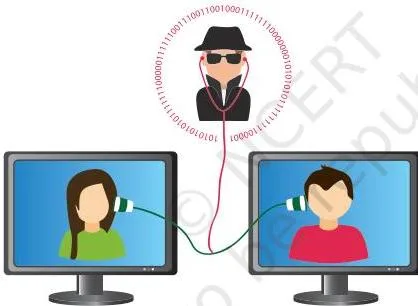
Figure 12.6 belongs to the eavesdropping section (12.9.4). It shows a third party intercepting a communication while the two legitimate parties are still talking to each other — that real-time capture is exactly what separates eavesdropping from snooping, which stores traffic for later analysis.
Threats and Prevention: The Core Idea of the Chapter
The whole chapter hangs on one idea: a computer that connects to anything else is exposed. This opening concept (NCERT, p. 223) is what makes every later section necessary.
An isolated computer — one with no link to any external device or computer — is free from the security threats that come with connections. But nobody keeps a computer that way, and the world is moving towards full connectedness.
So the chapter defines safety in a connected world: network security protects a device and its data from illegitimate access or misuse, and threats are all the ways an attacker exploits a vulnerability or weakness in a network or communication system to cause harm. Everything that follows — malware, antivirus, firewalls, HTTPS — is a defence against some part of that exposure.
The Seven Malware Types the Chapter Names
The chapter’s first big block (12.2, pp. 224–227) is the malware family. The table groups all seven types by how they spread and what they do, so you can see the virus–worm–trojan distinction at a glance.
| Malware | How it spreads or acts | Main harm | Example from the book |
|---|---|---|---|
| Virus | Needs a host program; stays dormant until the infected executable is opened; copies its code into other programs | Steals passwords or data, corrupts files, spams email contacts, takes control of the machine | CryptoLocker, ILOVEYOU, MyDoom, Sasser, Netsky, Slammer, Stuxnet |
| Worm | Standalone program with no host; replicates on its own and spreads over the network without human triggering | Unexpected or damaging behaviour on every infected system | Storm Worm, Sobig, MSBlast, Code Red, Nimda, Morris Worm |
| Ransomware | Targets user data; blocks access to it or encrypts it | Demands a ransom payment to restore access | WannaCry (2017, ~200,000 computers in 150 countries, Bitcoin ransom) |
| Trojan | Disguises itself as legitimate software; the user installs it; does not self-replicate | Acts like a virus or worm once installed; some create backdoors for malicious access | Named after the Trojan horse of Troy |
| Spyware | Installed without the user’s knowledge; records and sends information to an external entity | Tracks internet use; can capture credit card, bank, login or identity data | — |
| Adware | Displays ads through pop-ups, web pages or installation screens | Usually annoying but harmless; unsafe ad links can let in other malware; earns revenue per click | — |
| Keylogger | Records every key pressed; can be software or a thin hardware layer over the keyboard | Leaks passwords, emails and private conversations to an external entity | — |
Memorise the three-way contrast the exam keeps returning to (NCERT, p. 224): a virus needs a host and a human trigger, a worm is standalone and self-replicating, and a trojan pretends to be something you want and does not self-replicate at all.
Keyloggers and the Virtual Keyboard Defence
A keylogger is the malware that watches what you type, so it is dangerous in a different way from the others: it does not steal a file, it simply records. The chapter’s defence is a keyboard whose layout changes under your fingers (NCERT, pp. 227–228).
Software keyloggers make logs of daily keyboard usage and can send them to an external entity, exposing passwords, emails and private conversations without the user knowing. The hardware version is a thin, transparent keyboard placed over the actual keyboard, which records the keys as you press them.
The chapter’s advice: use a virtual keyboard when signing into online accounts from an unknown computer.
This is where Figures 12.3 and 12.4 above do the work. The operating system’s on-screen keyboard keeps a fixed QWERTY layout that sophisticated keylogger software can exploit. The online virtual keyboard randomises its key layout every time it is used, so the recorded positions no longer match the letters you pressed.
That single difference — fixed vs randomised layout — is the whole answer to a common short question.
How Malware Spreads, and the Prevention Checklist
Once you know the routes malware travels, you can block each route. The chapter names four distribution channels, then gives signs of infection and practical prevention measures (NCERT, pp. 228–229).
Four modes of malware distribution:
- Downloaded from the Internet — malware is often downloaded unintentionally, disguised particularly in “free stuff.”
- Spam email — unsolicited emails carrying embedded hyperlinks or attachments that are malware.
- Removable storage devices — pen drives, SSD cards, music players and phones can carry replicating malware to every system they are plugged into.
- Network propagation — worms in particular travel from one computer to another through a network connection.
Common signs of infection:
- Frequent pop-up windows pushing websites or software downloads.
- Your browser’s default homepage changes without you doing it.
- Mass emails are sent from your own email account.
- The computer is unusually slow with frequent crashes.
- Unknown programs start up when you switch the computer on; programs open and close by themselves.
- Sudden loss of storage space; random messages, sounds or music appear; files appear or disappear.
Prevention measures (the chapter’s checklist):
- Use antivirus and anti-malware software and update it regularly; apply software updates and patches from manufacturers.
- Configure your browser security settings; check for the lock button in the address bar while making payments.
- Avoid clicking links or downloading attachments from unsolicited emails; scan removable storage with antivirus before transferring data.
- Avoid entering passwords, pins or personal information on unknown or public computers, and on unknown networks (like public Wi-Fi) even on your own computer.
- Never install an antivirus presented in a pop-up; close pop-ups using the X icon at the top-right, and cancel any installation that has already started.
- Take regular backups; remove unrecognised programs; never share online account or banking passwords; avoid pirated software and choose Free and Open Source Software (FOSS).
How Antivirus Software Detects Malware: Five Methods
Antivirus — also called anti-malware — began as virus detection and removal software, and grew into protection against the whole malware family (NCERT, p. 230). The chapter first defines a virus signature as a consecutive sequence of bytes commonly found in a malware sample: present in the malware or infected file and not in unaffected files. Then it lists five detection methods.
| Method | How it works | What the chapter warns you to watch |
|---|---|---|
| Signature-based | Compares files against a signature database — the Virus Definition File (VDF) — updated continuously in real time | An outdated VDF is as good as no antivirus; new malware infects undetected. Also misses polymorphic malware and code that is partly encrypted |
| Sandbox | Runs a new file in a virtual environment and observes its behavioural fingerprint | Slow, but very safe — the unknown file never touches real system resources |
| Data mining | Uses data mining and machine-learning techniques to classify a file’s behaviour as benign or malicious | Relies on behavioural data from the file being analysed, not on a known signature |
| Heuristics | Compares the suspected program’s source code against known malware patterns in the heuristic database; flags it if most of the code matches | Only catches code that resembles what the heuristic database already holds |
| Real-time protection | Runs in the background and watches files for suspicious activity while they execute in main memory | Needed because some malware stays dormant and activates only after some time |
Spam, HTTP and HTTPS: Keeping Data Safe in Transit
Two separate ideas meet here: junk messages (spam) and the difference between a plain and an encrypted web connection. Both are about data that travels to and from you.
Spam (NCERT, p. 231) is unwanted junk on digital platforms — messaging, forums, chat, email, advertisements. The most recognised form is email spam: organisations build or buy mailing lists and repeatedly send advertisement and invitation emails, cluttering inboxes and tricking users into buying something or downloading malware.
Email services now run automatic spam-detection algorithms, and users can mark an undetected unsolicited email as “spam” so similar mail stays out of the inbox.
| Comparison | HTTP | HTTPS |
|---|---|---|
| What it sends | Data as it is, unencrypted | Data encrypted before sending, decrypted at the receiver |
| Good for | Public information sharing — news portals, blogs | Banking credentials, passwords, personal information |
| Extra requirement | — | SSL Digital Certificate |
The reason for HTTPS is simple (NCERT, pp. 231–232): HTTP leaves data vulnerable to hackers, while HTTPS scrambles it so a snooper cannot read it.
The chapter’s margin advice, in your own words: always look for https:// at the start of a site’s address before entering banking or personal information, and check for the lock button in the address bar while making payments.
Worked scenario: a banking password over public Wi-Fi
Here is how the chapter’s ideas connect in one real situation (NCERT, pp. 231, 236). You sit in a café, join the public Wi-Fi, and type your net-banking password into a page whose address starts with http://.
- HTTP sends your password over the network as it is, with no scrambling — so the data is vulnerable to anyone who can capture traffic.
- A snooper on the same network can capture and analyse the packets. Unencrypted data is exactly what snooping exploits.
- Snooping software can store the captured traffic and place the packets back in the channel so nothing seems wrong — you have no way to know the password was copied.
- Had the address been https://, your browser would encrypt the password before transmission and only the intended server’s decryption would recover it. The snooper would capture only meaningless ciphertext.
The conclusion is the chapter’s own advice: encryption is why you check for https:// before entering anything sensitive.
Firewalls: The First Barrier Against Network Threats
A firewall is not an antivirus — it sits between your network and the outside and filters what crosses the boundary. The chapter defines a firewall as a network security system designed to protect a trusted private network from unauthorised access or traffic originating from an untrusted outside network, implemented in software, hardware, or both (NCERT, p. 232).
Because a worm can move across networks, the firewall acts as the first barrier against malware.
The book’s example is a school LAN where students cannot access data from the finance server but the accountant can. The same rule in another setting: in an office, only HR staff can reach the payroll server, and the firewall drops every other request.
That is how a firewall works — as a network filter that continuously monitors and controls incoming and outgoing traffic according to predefined security rules. Figure 12.5 above shows where it sits.
Two types of firewall (NCERT, p. 233):
- Network firewall — placed between two or more networks; monitors traffic between different networks.
- Host-based firewall — placed on a single computer; monitors traffic to and from that computer.
Try the chapter’s practical tasks: Activity 12.1 asks your teacher to show you how to enable and disable the firewall on your computer, and the Think and Reflect question asks whether a firewall could be used to prevent distraction while students surf the Internet during a class project.
Cookies: What They Store for You, and When They Become a Threat
A cookie is not something to fear blindly — it is a small file that makes websites remember you. The chapter explains what cookies do and then names the specific kinds that are risky (NCERT, pp. 233–234).
A computer cookie is a small file or data packet stored by a website on the client’s computer, and only the website that created it can edit it. The name comes from the Unix term “magic cookie” — a packet of data a program receives and sends back unchanged.
Cookies store browsing information such as items in a shopping cart, language preference, login credentials, search queries and auto-fill data, which is why an e-commerce cart survives as you move between pages and why online forms fill themselves.
| Cookie type | What it does | The risk it carries |
|---|---|---|
| Session cookie | Keeps track of the current session and terminates it on a time-out — banking websites use this | Low; a left-open banking page closes itself automatically |
| Authentication cookie | Checks whether the user is already logged in, so you are not asked to log in again on every page | Low; it is a routine convenience |
| Third-party cookie | May share user data without consent for advertising or tracking across sites | Privacy loss — search for an item and see ads for similar items on other sites |
| Supercookie | Malware that disguises itself as a cookie | Can infect the system, unlike ordinary cookies |
| Zombie cookie | Gets recreated even after the user deletes it | Persists against the user’s wishes |
The balanced conclusion (NCERT, p. 234): cookies usually do not infect a computer with malware — they enhance browsing. The dangers are the disguised and tracking kinds: supercookies, zombie cookies and third-party cookies. So be careful about granting permission to any website to create and store cookies.
Activity 12.2 asks you to open your browser, check its cookie settings and locate cookie files on your computer.
Hackers and Crackers: White, Black and Grey Hats
The chapter classifies people who break into systems by their intent, not their skill — the same knowledge can be used to protect or to attack (NCERT, p. 234). Hackers and crackers are people with thorough knowledge of computer systems, system software, networks and programming, who use it to find loopholes and vulnerabilities and gain access to unauthorised information.
A hacktivist is a hacker whose aim is political and social change.
- White hat (ethical hacker) — uses knowledge to find and help fix security flaws. Good intentions; organisations hire them to check systems for threats and loopholes, and technically they work against black hats (NCERT, p. 234).
- Black hat (cracker) — uses knowledge unethically, breaks the law and disrupts security by exploiting flaws and loopholes (NCERT, p. 234).
- Grey hat — the neutral middle ground: hacks systems by exploiting vulnerabilities but not for monetary or political gain; takes system security as a challenge and hacks for the fun of it (NCERT, pp. 234–235).
DoS, DDoS and Other Network Intrusions
These attacks do not steal data — they stop a service from working, which is why they sit under network security threats (NCERT, pp. 235–236).
Denial of Service (DoS) is a scenario where an attacker limits or stops an authorised user from accessing a service, device or resource by overloading it with illegitimate requests.
A DoS attack on a website floods it with a very large number of network packets from different IP addresses, so the server appears busy and real users conclude the site is down. The same idea applies to email servers, network storage and even resetting active sessions.
A crashed server can be restarted, but a flooding attack is hard to recover from because genuine requests are mixed in with the flood.
Distributed Denial of Service (DDoS) is the DoS variant where the flooded requests come from compromised computers — called zombies — spread across the globe or a very large area. The attacker installs malicious software called a bot on each zombie, giving control of the machines, and activates a network of them known as a botnet.
Blocking one source works against a simple DoS, but a DDoS comes from many distributed locations, which is why it is very difficult to resolve.
Three other intrusion problems (NCERT, pp. 235–236):
- Asymmetric routing — the attacker sends intrusion packets through multiple paths to bypass network intrusion sensors and avoid detection.
- Buffer overflow attacks — the attacker overwrites memory areas of networked computers with code that executes when a buffer overflow (a programming error) occurs; this can start a DoS attack or give access to the network.
- Traffic flooding — swamping the network intrusion detection system with message packets until it can no longer monitor properly, letting the hacker sneak in undetected.
Snooping vs Eavesdropping: The Real-Time Difference
This is the easiest pair in the chapter to confuse, because both involve secretly listening. The dividing line is time: stored capture versus real-time interception (NCERT, pp. 236–237).
Snooping — also called sniffing — is the secret capture and analysis of network traffic. The snooping device or software picks up all traffic passing through a channel, analyses the packets, then reproduces them and places them back as if nothing happened. Because the capture can be stored for later analysis, unencrypted data is vulnerable to snooping.
Snooping is not always an attack: network administrators use it for troubleshooting, and switches and hubs have a SPAN (sniffer port analyser) port for this purpose. The related URL snooping is a software package that downloads and stores a web stream as a file — the same technique online video downloaders use.
Eavesdropping is unauthorised real-time interception or monitoring of private communication between two entities over a network. Its targets are private channels: phone calls (VoIP), instant messages, video conferences and fax transmission. The older telephone version was called wiretapping, and today laptops and cell phones with built-in microphones or cameras can be hacked and eavesdropped on using rootkit malware.
The chapter’s comparison (NCERT, p. 237) makes the difference stick — and Figure 12.6 above shows the eavesdropping side: eavesdropping is someone standing at your window or hiding a microphone in your room, listening as you speak; snooping is someone making a copy of a letter addressed to your friend, keeping the copy and sending the original on.
Key Terms and Definitions from Chapter 12
A quick-reference table for the night before the exam — every term below is defined as the chapter defines it, with the textbook page to check.
| Term | Definition | NCERT page |
|---|---|---|
| Virus | Code that performs malicious activities, infects executable files and activates when the infected file is opened | p. 224 |
| Worm | Standalone malware that replicates on its own and spreads over the network without a host or human trigger | p. 224 |
| Ransomware | Malware that blocks access to user data, or threatens to publish it, and demands ransom | p. 225 |
| Trojan | Malware disguised as legitimate software that acts like a virus or worm once installed; does not self-replicate | p. 225 |
| Spyware | Malware that gathers and sends user information to an external entity without consent | p. 226 |
| Adware | Malware that displays advertisements to generate revenue; usually annoying, can open the door to other malware | p. 226 |
| Keylogger | Software or hardware that records the keys pressed on a keyboard and may send the log away | p. 227 |
| Virus signature | A consecutive sequence of bytes commonly found in malware and not in unaffected files | p. 230 |
| Spam | Unwanted junk messages on digital platforms, most recognised in email | p. 231 |
| HTTP | A protocol that sends data over the Web as it is, without encryption | p. 231 |
| HTTPS | The secure variant that encrypts data before sending and decrypts it at the receiver; requires an SSL Digital Certificate | p. 231 |
| Firewall | A network security system protecting a trusted private network from untrusted outside traffic | p. 232 |
| Cookie | A small file stored by a website on the client computer; only the creating site can edit it | p. 233 |
| Session cookie | A cookie that tracks the current session and terminates it on a time-out | p. 233 |
| Authentication cookie | A cookie that checks whether the user is already logged in | p. 233 |
| White hat | Ethical hacker hired to find and fix security flaws | p. 234 |
| Black hat | Cracker who uses knowledge unethically to break the law and disrupt security | p. 234 |
| Grey hat | Hacker who exploits vulnerabilities for the challenge, with no monetary or political gain | p. 234 |
| DoS / DDoS | Overloading a resource with illegitimate requests from one source (DoS) or from many compromised zombies (DDoS) so real users lose service | p. 235 |
| Snooping | Secret capture and analysis of network traffic, which can be stored for later | p. 236 |
| Eavesdropping | Unauthorised real-time interception of private communication between two parties | p. 237 |
Common Mistakes Students Make in Security Aspects
These are the confusions this chapter actually causes. Naming them before you meet them saves you in a hurry.
| Mistake | Correct rule | How to check your answer |
|---|---|---|
| “A worm is a virus that needs a host.” | Worms are standalone and self-replicating; viruses need a host program and human triggering (NCERT, p. 224) | Can it spread through the network on its own? Then it is a worm |
| “Every malware is a virus.” | Malware is the umbrella term; a virus is one of seven types in the chapter | Name the exact type — trojan, spyware, ransomware — instead of defaulting to “virus” |
| “HTTPS means the site itself is safe.” | HTTPS only encrypts data in transit; it says nothing about the site’s trustworthiness (NCERT, p. 231) | Still check for https:// and the lock button before entering sensitive information |
| “All cookies are dangerous / all cookies are harmless.” | Most cookies are routine helpers; the dangers are third-party, supercookie and zombie cookies (NCERT, p. 234) | Ask which type — session and authentication cookies are normal website function |
| “Snooping and eavesdropping are the same.” | Snooping can store traffic for later analysis; eavesdropping is real-time interception (NCERT, p. 237) | Is the interception happening live, or stored and replayed later? |
| “An antivirus with an old VDF still protects me.” | An outdated Virus Definition File is as good as no antivirus — new malware passes undetected (NCERT, p. 230) | Is the signature database being updated regularly? |
| “A firewall replaces an antivirus.” | A firewall filters traffic at the network edge; antivirus detects malware already in a system (NCERT, p. 232) | One stops worms crossing the network; the other stops infection already on the machine |
How the End-of-Chapter Exercise Asks You to Use This Material
The exercise at the end of the chapter (NCERT, p. 240) repeats four skills. If you revise by skill, the pattern of every question becomes predictable.
- Define and explain: why an isolated computer is safe (Q1), what a virus is with named examples (Q2), how ransomware extracts money (Q4), the origin of the Trojan’s name (Q5), how adware earns revenue (Q6), and two specific keylogger threats (Q7). Full marks need the definition and an example or mechanism from the chapter.
- Differentiate pairs: worm vs virus (Q3), virtual vs on-screen keyboard (Q8), risks of HTTP and how HTTPS resolves them (Q13), DoS vs DDoS (Q16), snooping vs eavesdropping (Q17). Each answer needs one crisp contrast plus its consequence.
- List-style answers: modes of malware distribution (Q9), signs of infection (Q10), preventive measures (Q11), methods of malware identification used by antivirus (Q12). These need the full enumeration from the chapter, not an abbreviated version.
- Short notes and judgments: one advantage and one disadvantage of cookies (Q14), and a note on white, black and grey hat hackers (Q15).
Also treat the two Activities as practical revision: Activity 12.1 (enable and disable the firewall on your computer) and Activity 12.2 (check cookie settings and locate cookie files in your browser).
The Think and Reflect question — can a firewall prevent distraction during a class project — asks you to apply the firewall’s filtering idea to a new situation, which is exactly how the board-style questions extend the chapter. Hands-on security demos are also collected in the project-based learning notes for Class 12 Computer Science.
Security Aspects Class 12: One-Page Revision Summary
The chapter’s own SUMMARY (NCERT, pp. 238–239) compressed into scannable bullets — reread this five minutes before the exam.
- The malware family: malware is software built to damage, steal or trouble; a virus needs a host and a trigger; a worm is standalone and self-replicating; ransomware blocks or encrypts data and demands ransom; a trojan disguises itself and does not self-replicate; spyware reports on you; adware shows ads; a keylogger records keys.
- Spread and prevention: four routes — Internet downloads, spam email, removable storage, network propagation. Prevent by updating software, configuring browser security, scanning removable media, avoiding unknown links, staying off public computers and networks for sensitive work, and taking backups.
- Antivirus detection: signature-based (VDF), sandbox, data mining, heuristics and real-time protection; keep the VDF updated or the antivirus is useless.
- Spam and HTTPS: spam is filtered automatically and by marking; HTTP sends data plainly, HTTPS encrypts it and needs an SSL Digital Certificate; look for https:// before sensitive input.
- Firewall: the first barrier between a trusted and an untrusted network; network firewall and host-based firewall.
- Cookies: small files stored by sites on the client machine; session and authentication cookies are helpful; third-party, supercookie and zombie cookies are the risks.
- Hackers: white hats fix, black hats break, grey hats hack for the challenge; hacktivists seek political and social change.
- DoS and DDoS: overloading a resource with illegitimate requests; DDoS comes from zombies controlled through a botnet and is far harder to block.
- Snooping vs eavesdropping: stored capture and analysis of traffic vs unauthorised real-time interception.
Related NCERT Resources for Class 12 Computer Science
This listing is maintained for the 2026-27 academic session using the NCERT textbook information available to us. NCERT remains the authority for confirming the latest edition.
Continue with the rest of the book and verify anything you need directly from NCERT, the publisher of this textbook.
- Class 12 Computer Science NCERT Book — the full book hub with every chapter in the textbook.
- Data Communication Class 12 chapter — the preceding chapter, on how data actually travels before this chapter shows you how to secure it.
- Class 12 Computer Science revision notes — quick-revision material across the subject.
- The official NCERT textbook portal — use it to verify the current Class 12 Computer Science edition and complete chapter set.
Sources and Data Verification
This page describes the NCERT Class 12 Computer Science textbook, chapter 12 (Security Aspects), official edition published at ncert.nic.in. The page is maintained for the current academic session using the NCERT information available to us. Textbook contents and the examinable CBSE syllabus are not always identical — check the current official CBSE syllabus for what is examinable.
NCERT settles textbooks, editions and PDFs; CBSE settles curriculum, syllabus and examinations. No expert review process is claimed; every fact here is drawn from the NCERT chapter itself.
Reference: NCERT Class 12 Computer Science textbook, chapter 12, official edition on ncert.nic.in.
Security Aspects Class 12: Frequently Asked Questions
How is a computer virus different from a worm?
A virus needs a host program and human triggering — it activates only when an infected file is opened — while a worm is a standalone program that replicates on its own and spreads over the network without any user action (NCERT, p. 224).
How is snooping different from eavesdropping?
Snooping captures and analyses network traffic and can store it for later analysis — like copying a letter before sending the original — while eavesdropping intercepts private communication in real time, like listening at someone’s window as they speak (NCERT, pp. 236–237).
Why is a virtual keyboard safer than an on-screen keyboard?
An online virtual keyboard randomises its key layout every time it is used, so keystrokes recorded by a keylogger no longer match the letters you pressed, whereas the operating system’s on-screen keyboard keeps a fixed QWERTY layout that sophisticated keylogger software can exploit (NCERT, pp. 227–228).
Is a firewall the same as an antivirus?
No. A firewall filters traffic between a trusted private network and an untrusted network — the first barrier against malware that moves across networks — while antivirus software detects and removes malware that has already reached a system. Enforcing firewall protection and keeping an antivirus updated are separate prevention measures (NCERT, pp. 229, 232).
Are cookies always dangerous?
No. Most cookies are routine: session cookies end on a time-out and authentication cookies keep you logged in. The dangers are specific — third-party cookies that track you across sites, supercookies that are malware in disguise, and zombie cookies that recreate themselves after deletion (NCERT, pp. 233–234).
Does HTTPS mean a website is completely safe?
No. HTTPS encrypts data before transmission so a snooper cannot read it, but it does not judge the site itself. The chapter’s advice is to look for https:// at the start of the address — and the lock button in the address bar — before entering banking, personal or other sensitive information (NCERT, pp. 229, 231–232).
Explore Class 12 Computer Science Books
- Previous: Data Communication
- Next: Project Based Learning
Related chapters:
- Exception Handling in Python
- Querying and SQL Functions
- File Handling in Python