
Revising Security Aspects (Class 12 Computer Science, Chapter 12)? This page condenses the whole chapter into one place: every malware type, the five antivirus methods, the firewall, cookies, hackers and the network threats — with comparisons, original practice scenarios and the answer structure each exercise needs.
These notes follow the 2026-27 session. Page references point to the rationalised NCERT Class XII Computer Science textbook (pp. 223–240), which you can verify or download from the official NCERT textbook portal. Reference: NCERT Class 12 Computer Science textbook, chapter Security Aspects.
Security Aspects at a Glance: What Chapter 12 Covers
Chapter 12 opens with one observation: a computer with no link to an external device or computer faces no network threats — but total isolation is not practical in a connected world.
Network security is therefore the protection of your device and your data from illegitimate access or misuse (NCERT, p. 223), and the whole chapter is a catalogue of threats and the defences against them.
The nine topic blocks below are the chapter’s full scope; jump to any weak spot from the table of contents above.
| Topic block | What it covers | Textbook pages |
|---|---|---|
| Threats and Prevention | Why connected computers are exposed; what network security protects | p. 223 |
| Malware | Seven malware types, distribution channels, infection signs, prevention | pp. 224–230 |
| Antivirus | Five methods used to identify and remove malware | pp. 230–231 |
| Spam | Unwanted bulk messages on email and other digital platforms | p. 231 |
| HTTP vs HTTPS | Plain vs encrypted web communication | pp. 231–232 |
| Firewall | Filter between a trusted private network and an untrusted outside network | pp. 232–233 |
| Cookies | Small files websites store on the client computer | pp. 233–234 |
| Hackers and Crackers | White, black and grey hats | pp. 234–235 |
| Network Security Threats | DoS, DDoS, intrusion problems, snooping, eavesdropping | pp. 235–238 |
Running through every block is one idea: each connection is a possible doorway for attack, so every defence controls what crosses the boundary between your device and the outside. This page sits in the CBSE notes library — browse it alongside the other Class 12 notes or directly from the Class 12 Computer Science notes hub.
Core Malware: Viruses, Worms, Ransomware and Trojans
Malware (MALicious softWARE) is any software written with the intention to damage hardware, steal data, or cause trouble to the user (NCERT, p. 224). Four families form the chapter’s core.
Virus: code that inserts itself into an executable file. It stays dormant until the infected file is opened, so replication needs human triggering. Fred Cohen coined the term in 1985, borrowing the behaviour of a biological virus — it spreads on contact with another system (NCERT, p. 224). Famous examples: ILOVEYOU, MyDoom and Stuxnet.
Worm: a standalone program. It needs no host file and no human trigger — it replicates on its own and spreads from computer to computer over the network (NCERT, p. 225). Examples include Code Red and the Morris Worm.
Ransomware: malware that targets user data. It either blocks access to the data or encrypts it, then demands a ransom payment. In May 2017, WannaCry infected almost 200,000 computers across 150 countries, encrypting data and demanding payment in Bitcoin (NCERT, p. 225). Figure 12.1 shows a ransomware attack, in which data access is blocked or encrypted and a ransom is demanded.

Trojan: named after the wooden horse of Troy. The ancient Greeks could not enter Troy by force, so they offered the king a big wooden horse with soldiers hidden inside.
A trojan does the same digitally: it looks like legitimate software, tricks the user into installing it, and then acts much like a virus or worm — it can even open backdoors for attackers. Crucially, a trojan does not self-replicate; it spreads through user interaction such as opening an email attachment (NCERT, p. 226).

Figure 12.2 pictures that wooden horse, and the parallel is the whole point: just as soldiers hid inside the “gift”, hidden malicious code hides inside software that looks trustworthy.
The next section completes the seven-member malware family and compares all seven in one table.
More Malware: Spyware, Adware, Keyloggers and the Keyboard Defence
Spyware gathers information about a person or organisation without the user’s knowledge and sends it to an external entity. It typically tracks internet usage, and it can also capture bank account details, login IDs and passwords (NCERT, p. 226).
Adware exists to generate revenue for its developer. It shows advertisements through pop-ups, web pages or installation screens, earning money by displaying ads or through pay-per-click charges. It is usually annoying but harmless — yet it often paves the way for other malware by displaying unsafe links as advertisements (NCERT, pp. 226–227).
Keylogger is malware (or even hardware) whose whole job is to record the keys a user presses. It logs daily keyboard use and can send the logs to an external entity, revealing passwords, emails and private conversations. The hardware form is a thin transparent keyboard overlay placed on top of the real keyboard (NCERT, p. 227).
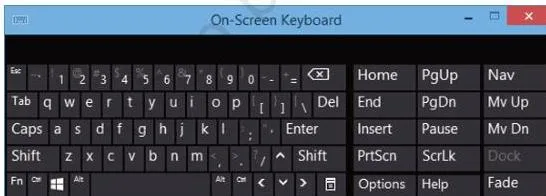
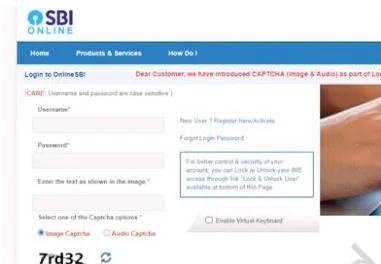
The chapter’s defence against keyloggers is the online virtual keyboard. The on-screen keyboard of an operating system uses a fixed QWERTY layout, which sophisticated keylogger software can predict; an online virtual keyboard randomises the key layout every time it is used, so even if keystrokes are recorded, it is very difficult to tell which key was pressed (NCERT, pp. 227–228).
Figure 12.3 shows the fixed QWERTY arrangement of the on-screen keyboard — predictable and therefore exploitable. Figure 12.4 shows the online virtual keyboard with its scrambled layout, reshuffled at each use.
That is why the online virtual keyboard is the safer choice when signing in from an unknown computer. Here is the whole malware family side by side — the fastest way to revise all seven:
| Malware | Needs a host file? | Self-replicates? | How it spreads | Typical harm |
|---|---|---|---|---|
| Virus | Yes — inserts into executable files | Yes, but only when the infected file is opened | Infected files passed between systems | Steals data, corrupts files, spams contacts, can take over the machine |
| Worm | No — standalone program | Yes, on its own | Through the network | Unexpected, damaging behaviour on infected systems |
| Ransomware | No | No | Arrives like other malware (downloads, links), then blocks or encrypts data | Data locked or encrypted; ransom demanded for release |
| Trojan | No — disguises as legitimate software | No | User interaction: email attachments, downloaded files | Acts like a virus or worm; can create backdoors |
| Spyware | No | No | Installed and runs without the user’s knowledge | Steals browsing, bank and login data and sends it out |
| Adware | No | No | Pop-ups, web pages, installation screens; unsafe ad links | Displays ads and earns revenue; opens the door for worse malware |
| Keylogger | No — can even be a hardware overlay | No | Software install or transparent keyboard overlay | Records keystrokes; reveals passwords, emails, private conversations |
To recall the seven names in the chapter’s order, remember: “Vicious Worms Really Try Stealing All Keys” — Virus, Worm, Ransomware, Trojan, Spyware, Adware, Keylogger.
How Malware Spreads, Warning Signs and Prevention
Malware reaches a computer through four distribution channels (NCERT, p. 228):
- Downloaded from the Internet — often disguised as “free stuff”; the user installs it unintentionally.
- Spam email — unsolicited messages carrying hyperlinks or attachments that contain malware.
- Removable storage devices — pen drives, SSDs, music players and phones carry malware to the next machine they are plugged into.
- Network propagation — how worms travel from one computer to another through a network connection.
Signs of an infection (NCERT, pp. 228–229):
- frequent pop-up windows prompting you to visit a site or install software;
- your browser’s default homepage has changed;
- mass emails are being sent from your email account;
- the computer is unusually slow and crashes often;
- unknown programs start when you turn the computer on;
- programs open and close by themselves;
- storage space suddenly disappears; random messages, sounds or music appear;
- files or programs appear or disappear without your knowledge.
Prevention — four hygiene buckets. The chapter’s original prevention list (NCERT, pp. 229–230) is easier to memorise regrouped this way:
| Bucket | What to do |
|---|---|
| Software hygiene | Use updated antivirus and anti-malware; apply manufacturer updates and patches; prefer Free and Open Source Software (FOSS) over pirated copies; never install an antivirus offered in a pop-up; remove programs you do not recognise. |
| Browsing hygiene | Configure browser security settings; check for the lock icon in the address bar while paying; close pop-ups with the X at the top-right and cancel any install that has started; do not click links or attachments in unsolicited emails. |
| Data hygiene | Take regular backups; scan removable storage devices before transferring data; enforce firewall protection on the network. |
| Credential hygiene | Never share online account or banking passwords/PINs; avoid entering sensitive or personal information on unknown or public computers and on unknown public Wi-Fi. |
If you want the textbook’s original wording of the list, it appears in full on pp. 229–230.
How Antivirus Software Detects Malware: Five Methods
Antivirus software began as a virus remover (hence the name) and evolved into anti-malware that prevents, detects and removes a wide range of threats (NCERT, p. 230). It identifies malware in five ways.
| Method | How it works | Weakness or cost |
|---|---|---|
| 1. Signature-based detection | The antivirus checks files against a Virus Definition File (VDF) of known signatures. A virus signature is a consecutive sequence of bytes found in a malware sample but not in uninfected files (NCERT, p. 230). | An outdated VDF is as good as no antivirus. It also fails against polymorphic malware and partially encrypted code. |
| 2. Sandbox detection | The suspicious file runs in a virtual environment (sandbox) and its behavioural fingerprint is observed before it can touch real system resources (NCERT, p. 230). | Slow, because each unknown file must be executed and watched — but very safe. |
| 3. Data mining techniques | Machine-learning and data-mining models classify the file’s behaviour as benign or malicious (NCERT, p. 230). | Accuracy depends on the model and the data it learned from. |
| 4. Heuristics | The source code of a suspected program is compared with known malware patterns in a heuristic database; if most of the code matches, the file is flagged (NCERT, p. 231). | Works from known patterns, so a completely new malware shape may match nothing. |
| 5. Real-time protection | The anti-malware keeps running in the background and watches a program’s behaviour while it executes in active (main) memory — catching malware that activates later, not just at install time (NCERT, p. 231). | Protects only while it is actually running on the system. |
The update warning students often miss: because the VDF must be updated continuously, a skipped update leaves the system effectively unprotected (NCERT, p. 230).
Spam, HTTP vs HTTPS, and the Firewall
Spam is unwanted bulk content sent on digital platforms — messaging, forums, chat and especially email. Organisations build mailing lists and repeatedly send advertisement or invitation emails, cluttering inboxes and sometimes tricking users into buying something or downloading malware.
Email services filter spam automatically, and a user can mark an undetected unsolicited mail as spam so similar mail stays out of the inbox (NCERT, p. 231).
HTTP vs HTTPS. Both are protocols — sets of rules — that govern how data travels between a client web browser and servers over the World Wide Web (NCERT, p. 231). The difference is encryption.
- HTTP sends information as it is, with no scrambling, so any attacker on the path can read it. It is fine for public information such as news portals and blogs, but risky for personal or banking data (NCERT, pp. 231–232).
- HTTPS encrypts the data before transmission and decrypts it at the receiver. HTTPS websites require an SSL digital certificate (NCERT, p. 232).
Think of HTTP as a postcard: anyone who handles it on the way can read the message. HTTPS is a sealed envelope: the message is encrypted, and only the receiver can open and read it.
The habit the chapter wants you to form is to look for the https:// prefix at the start of the address before entering banking, personal or other sensitive information (NCERT, p. 231).
Extra caution: HTTPS encrypts the channel, but it does not prove the website itself is honest. The lock icon only shows that the connection to that address is protected — still verify the address you are sending data to.
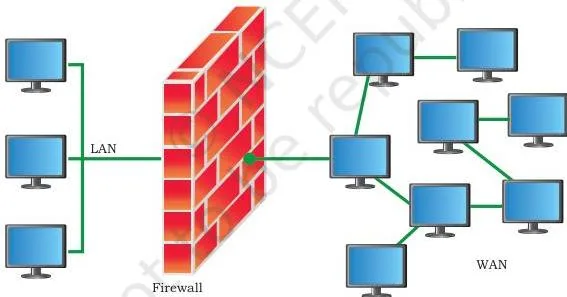
Firewall. A firewall is a network security system that protects a trusted private network from unauthorised traffic coming from an untrusted outside network (NCERT, p. 232). It works on predefined security rules, continuously monitoring and controlling incoming and outgoing traffic, and it acts as the first barrier against worms moving across networks.
One working example: a school LAN can be configured so students cannot access the finance server, while the accountant can (NCERT, pp. 232–233). Figure 12.5 shows the firewall’s position — a barrier between a trusted private network and an untrusted outside network, checking every packet that tries to cross. It can be implemented in software, hardware, or both.
There are two firewall types (NCERT, p. 233):
- Network firewall — placed between two or more networks; monitors inter-network traffic.
- Host-based firewall — installed on a single computer; monitors traffic to and from that computer.
The chapter’s Think and Reflect box asks whether a firewall could keep students focused on a project instead of surfing the Internet — a planning question the Project Based Learning notes build on. Firewalls and HTTPS police the same traffic you model in the Computer Networks notes, so keep that chapter’s vocabulary handy.
Cookies: Storage, Types and the Threats They Bring
A cookie is a small file or data packet that a website stores on the client’s computer; only the website that created it can edit it. The name comes from the Unix programmers’ term “magic cookie” — a packet of data a program receives and later sends back unchanged (NCERT, p. 233).
What sites use cookies for: keeping shopping-cart items, storing login credentials and language preferences, remembering search queries and recently viewed pages, and auto-filling your name, address and date of birth in online forms (NCERT, p. 233).
Two main types (NCERT, p. 233):
- Session cookies — track the current session and terminate it on a time-out. If you leave an e-banking page open, it closes automatically after the time-out.
- Authentication cookies — let a website know you are already logged in, so you need not sign in again on every page of the same site.
Threats (NCERT, p. 234). Cookies are usually safe and improve browsing, but:
- some malware disguises itself as a cookie — for example supercookies;
- zombie cookies get recreated even after the user deletes them;
- third-party cookies can share user data without consent — search for an item and the same item starts appearing as advertisements on other sites.
So be careful about which websites you allow to create and store cookies on your machine (NCERT, p. 234).
Hackers and Crackers: White, Black and Grey Hats
Hackers and crackers have deep knowledge of computer systems, operating systems, networks and programming, and both search for loopholes and vulnerabilities to reach unauthorised information (NCERT, p. 234). What separates them is intent.
- White hats (ethical hackers) use their skills to find and fix security flaws. Organisations hire them to check systems, and technically they work against black hats (NCERT, p. 234).
- Black hats (crackers) use their knowledge unethically, break the law and disrupt security by exploiting the same flaws (NCERT, p. 234).
- Grey hats sit in the neutral middle: they hack systems as a challenge or for fun, without monetary or political gain (NCERT, pp. 234–235).
A hacktivist is a hacker whose aim is political or social change (NCERT, p. 234).
| Hat | Intent | Motive | Typical role |
|---|---|---|---|
| White hat | Find and fix security flaws | Ethical, protective | Hired security expert / ethical hacker |
| Black hat | Break the law and disrupt security | Illegal gain or damage | Cracker — no legitimate employer |
| Grey hat | Neutral — hacks systems as a challenge | Fun, not money or politics | Independent; works for no one’s agenda |
Network Security Threats: DoS, DDoS, Intrusion, Snooping and Eavesdropping
Denial of Service (DoS). An attacker overloads a resource — a website, an email server, network storage — with illegitimate requests, so authorised users can no longer reach it. The flood of traffic makes the resource appear busy (NCERT, p. 235). Three recovery facts matter:
- A DoS attack that crashes a server can be recovered by restarting it.
- A flooding attack is hard to recover from, because genuine legitimate requests are mixed into the flood.
- Simple DoS can be countered by blocking packets from the single attacking source.
Distributed Denial of Service (DDoS). Now the flood comes from compromised computers (zombies) spread over the globe or a large area. The attacker installs malicious software called a Bot on each zombie to control it, and the activated network of zombies is a bot-net. Because the attack arrives from many distributed locations, DDoS is very difficult to resolve (NCERT, p. 235).
Intrusion problems. Network intrusion is any unauthorised activity on a computer network (NCERT, p. 236). Three problems beyond DoS:
- Asymmetric routing — the attacker sends intrusion packets through multiple paths to bypass the network’s intrusion sensors.
- Buffer overflow attacks — the attacker overwrites memory areas of network computers with code that executes later, when the programming-error overflow occurs; the executed code can launch a DoS or open network access.
- Traffic flooding — the intrusion detection system itself is flooded with packets until it can no longer monitor properly; in the congestion, the hacker enters undetected.
Snooping (also called sniffing) means secretly listening to a conversation; in networking it is the secret capture and analysis of network traffic. The snooping tool taps the channel, analyses the packets, reproduces exactly the same traffic and places it back, so nothing looks wrong — unencrypted data is therefore vulnerable (NCERT, p. 236).
Snooping is not always an attack: network administrators use it for troubleshooting, and some switches include a SPAN (sniffer port analyser) port function for it (NCERT, p. 237). A related utility, URL snooping, downloads and stores a web stream as a file for later viewing — the technique online video downloaders use.
The packets a snooper analyses are the same traffic concepts you study in the Data Communication notes.
Eavesdropping. Unlike snooping, eavesdropping is the unauthorised real-time interception or monitoring of private communication between two entities. The targets are private channels such as VoIP phone calls, instant messages, video conferences and fax transmissions. The old telephone-line version was wiretapping, and today rootkit malware can turn a laptop’s microphone or camera into an eavesdropping device (NCERT, p. 237).
The chapter’s own analogy: eavesdropping is hearing a live conversation through a hidden microphone, while snooping is copying a letter, keeping the copy, and sending the original on to its address (NCERT, pp. 237–238).
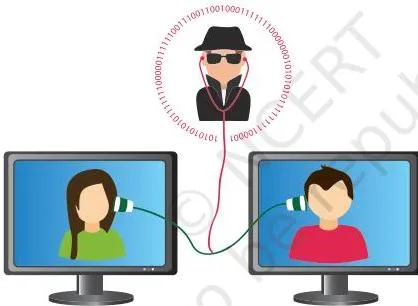
Figure 12.6 draws the eavesdropping situation: a third party sits between the two communicating ends and captures the data stream as it flows, in real time. Unencrypted traffic makes both snooping and eavesdropping easier — which is exactly why the chapter pushes HTTPS for anything sensitive.
Key Terms Table: Quick Definitions for Revision
One lookup table for a final scan — every row is exam-dense, so nothing here repeats the longer explanations above.
| Term | Meaning in simple words | Example or anchor |
|---|---|---|
| Malware | “Malicious software” — built to damage, steal or cause trouble | Viruses, worms, trojans |
| Virus | Code that needs an executable host file and activates when the file opens | ILOVEYOU, MyDoom, Stuxnet |
| Worm | Standalone program that replicates on its own over the network | Code Red, Morris Worm |
| Ransomware | Blocks or encrypts user data and demands payment | WannaCry (2017) |
| Trojan | Looks like legitimate software but hides malicious functions | Email attachment that opens a backdoor |
| Spyware | Secretly gathers user information and sends it out | Captures browsing, bank and login data |
| Adware | Displays ads to earn revenue for its developer | Pay-per-click pop-up ads |
| Keylogger | Records every key pressed; software or a hardware overlay | Reveals passwords typed on a keyboard |
| Spam | Unwanted bulk messages on email, messaging, forums | Junk invitation emails |
| HTTP | Web protocol that sends data unencrypted | News portals, blogs |
| HTTPS | Secure web protocol that encrypts data before transmission | Banking, e-commerce |
| SSL digital certificate | Certificate an HTTPS website is required to possess | The https:// prefix in the address bar |
| Firewall | Security system protecting a trusted private network from unauthorised traffic | Barrier between a LAN and the Internet |
| Network firewall | Firewall placed between networks; monitors inter-network traffic | School LAN boundary |
| Host-based firewall | Firewall on one computer; monitors its in/out traffic | Firewall app on a laptop |
| Cookie | Small file a website stores on the client computer; only its creator edits it | Keeps shopping-cart items |
| Session cookie | Tracks the current session; ends on time-out | Banking page auto-closes after inactivity |
| Authentication cookie | Remembers that you are already logged in | No repeated sign-in on the same site |
| Supercookie | Malware that disguises itself as a cookie | Hidden threat in a cookie-like file |
| Zombie cookie | Cookie that is recreated after deletion | Keeps reappearing |
| White hat | Ethical hacker who finds and fixes security flaws | Security expert hired by an organisation |
| Black hat | Hacker who breaks the law and disrupts security | Cracker exploiting flaws |
| Grey hat | Neutral hacker who hacks for fun or challenge | Hacks with no monetary or political aim |
| Hacktivist | Hacker aiming at political or social change | Hacking with a social agenda |
| DoS | Overloads a resource with illegitimate requests, blocking real users | Flooding a website with packets |
| DDoS | DoS carried out from many distributed zombie computers | Bot-net flood |
| Bot | Malware installed on a zombie computer to control it | Remote-control agent on a zombie |
| Bot-net | Network of zombie computers activated for a DDoS attack | Army of controlled machines |
| Snooping | Secret capture and analysis of network traffic; can be stored for later | Packet analyser on shared Wi-Fi |
| Eavesdropping | Unauthorised real-time interception of private communication | Listening to a VoIP call |
The Chapter’s Comparison Box (No Formulas Here)
Honest note first: this chapter contains no mathematical formulas and no numerical problems. What play the role of formulas are definition and comparison pairs — the rows below are worth memorising exactly because they can be asked in that form.
1. HTTP vs HTTPS (NCERT, pp. 231–232):
| Point of comparison | HTTP | HTTPS |
|---|---|---|
| Data format on the network | Sent as it is, unencrypted | Encrypted before transmission, decrypted at the receiver |
| Security | Vulnerable to interception | Safe for personal and banking data |
| Certificate needed | None | SSL digital certificate |
| Suitable for | Public information (news, blogs) | Logins, banking credentials, personal data |
2. DoS vs DDoS (NCERT, p. 235):
| Point of comparison | DoS | DDoS |
|---|---|---|
| Attack source | Single source | Many distributed zombie computers |
| Tools used | Direct flood from the attacker | Bots installed on zombies; a bot-net is activated |
| Countering it | Can be countered by blocking the single source | Very difficult because sources are distributed |
3. Snooping vs Eavesdropping (NCERT, pp. 236–238):
| Point of comparison | Snooping | Eavesdropping |
|---|---|---|
| Timing | Traffic can be stored for later analysis | Real-time interception |
| Typical targets | Network traffic passing through a channel | Private communication: VoIP, instant messages, video, fax |
| Chapter’s analogy | Copying a letter, keeping the copy, sending the original | Hearing a live conversation through a hidden microphone |
Worked Scenarios: Identify the Malware or Attack
These three original scenarios practise exactly what the chapter’s exercises ask for: recognise the symptom, name the threat, choose the defence. Concept first, then numbered steps.
Scenario A — Identify the malware (signs and distribution)
Concept: Malware infection signs and distribution channels (NCERT, pp. 228–229).
Step 1 — List the observed signs.
After installing a “free” game from a pop-up advertisement, a student finds: the browser homepage has changed, unknown programs start at boot, and the email account is sending mass messages.
Step 2 — Match each sign to the chapter’s list.
Changed homepage matches “changes to the default homepage”; unknown programs at startup match “unknown programs startup as you turn on your computer”; mass emails match “mass emails being sent from your email account”.
All three are listed infection signs.
Step 3 — Name the probable malware class and the distribution channel.
The entry vector — a “free” game installed from a pop-up — is the textbook’s case of malware downloaded from the Internet disguised as free stuff, which is why the chapter says to be careful downloading from the Internet.
Adware routinely enters this way and paves the way for other malware; once inside, the installed program can behave much like a virus or worm, which explains the mass emails.
Step 4 — Corrective steps from the prevention list.
Scan the system with updated antivirus; remove every unrecognised program; change the email password immediately; never install anything offered in a pop-up (close with the X icon at the top-right); restore the homepage from browser settings.
Takeaway: A “free” game from a pop-up is a classic adware/trojan gateway — the fix is scanning, removal, a password change and never installing from pop-ups again.
Scenario B — DoS or DDoS? (original numbers)
Concept: DoS vs DDoS — single source vs distributed zombies (NCERT, p. 235).
Step 1 — Classify the first event.
A college website becomes unresponsive when 4,000 requests per second arrive from a single IP address.
Blocking that one address restores service.
This is a DoS attack: one source, and blocking packets from a single source counters it.
Step 2 — Classify the second event.
Two weeks later the same site is flooded with 300,000 requests per second from 12,000 different machines, and blocking individual addresses changes nothing.
This is a DDoS attack: the requests come from many distributed compromised computers.
Step 3 — Name the tools.
In the DDoS, the attacker installed a Bot on each compromised zombie machine; the activated network of zombies forms a bot-net, which the attacker uses to carry out the flood.
Step 4 — Explain why the second is harder to counter.
A single-source flood can be filtered by blocking that address; a DDoS arrives from thousands of machines at once, so there is no single source to block, and legitimate requests are mixed into the flood.
Takeaway: Single-source flood = DoS (block the source); thousands of zombie machines running bots = DDoS (no simple block exists).
Scenario C — Captured login packets (snooping and the HTTPS defence)
Concept: Snooping vs eavesdropping, and the role of encryption (NCERT, pp. 236–238).
Step 1 — Identify the attack.
A student logs into a college portal over public Wi-Fi.
A classmate captures the login packets with a packet analyser, stores them, and later replays them to impersonate the user.
This is snooping (sniffing): secret capture and analysis of network traffic, with the captured traffic stored for later use.
Step 2 — Justify why it is not eavesdropping.
Eavesdropping is real-time interception of an ongoing private communication.
Here the damaging step happens later — the packets were stored and replayed — which is the stored-analysis signature of snooping, not the live monitoring of eavesdropping.
Step 3 — Recommend the defence.
The portal should use HTTPS, which encrypts login data before transmission; the student should also avoid sensitive logins on unknown public networks.
Step 4 — Justify with the encryption argument.
Over HTTP the data travels “as it is”, so a packet analyser on the same Wi-Fi reads the password directly.
With HTTPS, the captured packet is ciphertext — the classmate cannot turn it back into the password without the decryption key, so the replay fails.
Takeaway: Stored-and-replayed captured traffic is snooping; HTTPS (or avoiding public Wi-Fi for logins) is the defence that makes the captured data useless.
Common Mistakes Students Make in Security Aspects
Each row below is a strict error-to-correction pair: what students commonly write, the correct rule, and a quick way to check your own answer.
| Students write… | Correct is… | How to check your answer |
|---|---|---|
| “A worm is just a virus that spreads.” | A virus needs an executable host file and human triggering to replicate; a worm is a standalone program that replicates on its own over the network (NCERT, pp. 224–225). | Ask: “Does it need a host file? Does a user have to open something?” — both are “no” for a worm. |
| “A trojan is a type of virus.” | A trojan does not self-replicate and does not infect other files; it spreads through user interaction like email attachments and can open backdoors (NCERT, p. 226). | Ask: “Does it copy itself to other files?” — if not, it is not a virus; how did it enter? Usually the user installed it. |
| “Spyware and adware do the same thing.” | Spyware covertly gathers your information and sends it out; adware displays ads to earn revenue for its developer and is usually only annoying (NCERT, pp. 226–227). | Ask: “What is its goal?” — stealing data is spyware; showing ads is adware. |
| “An outdated antivirus still gives some protection.” | An outdated VDF is as good as having no antivirus, because new malware is not in the signature database and goes undetected (NCERT, p. 230). | Check the VDF’s last update — the database must be updated continuously. |
| “HTTPS means the website is honest.” | HTTPS only encrypts the channel between you and the server; it does not prove the site itself is genuine or well-meaning. | Do not stop at the padlock or https:// prefix — verify the address you are actually sending data to. |
| “Snooping and eavesdropping are identical.” | Snooping captures and analyses traffic and can store it for later; eavesdropping is unauthorised real-time interception of private communication (NCERT, p. 237). | Ask: “Is it stored for later, or live?” — stored is snooping; live is eavesdropping. |
| “All hackers are criminals.” | White hat hackers are ethical security experts hired by organisations to find and fix flaws; black hats are the criminals (NCERT, p. 234). | Ask: “What is the intent?” — fixing flaws is white hat; breaking the law is black hat. |
| “The firewall is always a hardware box.” | A firewall can be implemented in software, hardware, or both; a host-based firewall is software installed on a single computer (NCERT, p. 232). | Name both types — network firewall (between networks) and host-based firewall (on one computer) — to show the range. |
How to Write Complete Answers to the Chapter Exercise
The chapter’s seventeen exercises (NCERT, p. 240) are all concept questions — definitions, differentiations, lists and short notes; none is a numerical. The table below maps each question to the structure a complete written answer needs. This is structure guidance only, not a worked solution set.
| Question | Type | Structure of a complete answer |
|---|---|---|
| Q1 — Why is an unconnected computer safe? | Explainer | A computer with no link to an external device or computer is free of the security threats that arise from connectivity; add one line on why total isolation is impractical, so protection must come from security measures instead (p. 223). |
| Q2 — What is a computer virus? Name popular viruses. | Definition + examples | Define code that performs malicious activities and needs an executable host file; mention dormancy until the file is opened; then list two or three well-known viruses from p. 224. |
| Q3 — How is a worm different from a virus? | Differentiate | One shared line (both are malware), then compare on: host file needed (worm: none), replication trigger (worm: self), and spread (worm: via the network) — pp. 224–225. |
| Q4 — How does ransomware extract money? | Explainer — mechanism | Ransomware blocks access to data or encrypts it, then demands a ransom payment to release it; support with the 2017 WannaCry example (p. 225). |
| Q5 — How did the trojan get its name? | Explainer — origin | Recall the Greek wooden horse of Troy in one line (a gift hiding soldiers inside), then transfer the metaphor: hidden malicious code inside legitimate-looking software (pp. 225–226). |
| Q6 — How does adware generate revenue? | Explainer — mechanism | Two channels: displaying pop-up advertisements, and pay-per-click charges against clients for clicks on their ads (pp. 226–227). |
| Q7 — Two threats from a keylogger. | List — exactly two | Give exactly two, each explained: sensitive data like passwords and emails can be logged and leaked; private conversations can be revealed — plus a line that logs may be sent to an external entity (p. 227). |
| Q8 — Why is a virtual keyboard safer than an on-screen keyboard? | Differentiate | The on-screen keyboard uses a fixed QWERTY layout that keylogger software can exploit; an online virtual keyboard randomises the layout each use, so recorded keystrokes are useless (pp. 227–228). |
| Q9 — Modes of malware distribution. | List — four modes | One line each: downloaded from the Internet (often as disguised “free stuff”), spam email links or attachments, removable storage devices, and network propagation (p. 228). |
| Q10 — Common signs of malware infection. | List — signs | Itemise the signs from pp. 228–229 (pop-ups, changed homepage, mass emails, slowing or crashes, unknown startup programs, programs opening on their own, storage loss, random messages, files appearing or disappearing) — about one line each. |
| Q11 — Preventive measures. | List — measures | Itemise the chapter’s measures from pp. 229–230; organising them under the four hygiene buckets (software, browsing, data, credential) makes the answer easy to follow. |
| Q12 — Short note on antivirus identification methods. | Short note | One sub-point per method — signature-based detection, sandbox detection, data mining, heuristics, real-time protection — with one line on how each works (pp. 230–231). |
| Q13 — Risks of HTTP and how HTTPS resolves them. | Explainer — risk + resolution | Risk: HTTP sends data unencrypted, leaving it vulnerable to hackers; resolution: HTTPS encrypts before transmission, decrypts at the receiver, and needs an SSL digital certificate (pp. 231–232). |
| Q14 — One advantage and one disadvantage of cookies. | One of each | Advantage drawn from the uses on p. 233 (for example remembering cart items or login state); disadvantage drawn from the threats on p. 234 (for example third-party cookies sharing data). Give exactly one of each, explained. |
| Q15 — Short note on white, black and grey hats. | Short note — three parts | One short point per hat: white hats fix flaws and are hired by organisations; black hats break the law and disrupt security; grey hats hack for fun or challenge without monetary or political gain (pp. 234–235). |
| Q16 — Differentiate DoS and DDoS. | Differentiate | Compare on three named criteria: attack source (single vs many distributed zombies), tools (direct flood vs bots on a bot-net), and difficulty of countering (blockable vs very difficult) — p. 235. |
| Q17 — How is snooping different from eavesdropping? | Differentiate | Compare on: real-time vs stored analysis, typical targets (network traffic vs private communication channels), and the chapter’s letter vs hidden-microphone analogy (pp. 236–238). |
General rule for all seventeen: answer in your own words, reuse the exact terms the question uses (host file, self-replicate, bot-net, real-time), and in itemised answers give about one line of explanation per point. A definition question needs a definition plus an example; a differentiation needs named criteria, not just two separate descriptions.
One-Page Revision Recap: The Night Before
If you have only minutes left, this is the revision layer of the page — short notes that compress the whole chapter into one scan.
- Malware family (7): virus (host file + human trigger), worm (standalone, self-replicates), ransomware (locks or encrypts data, demands payment), trojan (disguised software, no self-replication, backdoors), spyware (secret data theft), adware (ad revenue; gateway to other malware), keylogger (records keys; software or hardware overlay).
- Antivirus methods (5): signature-based (VDF), sandbox, data mining, heuristics, real-time protection. An outdated VDF equals no protection.
- Web security: spam is unwanted bulk content; HTTP is plain (postcard), HTTPS is encrypted (sealed envelope) and needs an SSL certificate; the firewall protects a trusted private network, can be software, hardware or both — network firewall vs host-based firewall.
- Cookies: site-stored data files (cart, login, preferences, auto-fill); session cookies time out, authentication cookies remember logins; watch out for supercookies, zombie cookies and third-party sharing.
- Hackers: white hats fix flaws (hired), black hats break the law, grey hats hack for fun; a hacktivist wants political or social change.
- Network threats: DoS from one source (blockable); DDoS from a bot-net of zombies (very difficult); intrusion problems — asymmetric routing, buffer overflow, traffic flooding; snooping stores traffic for analysis, eavesdropping intercepts in real time.
The four must-know lists:
- the seven malware names and their one-line behaviour;
- the five antivirus methods;
- the two firewall types;
- the three comparison pairs — HTTP vs HTTPS, DoS vs DDoS, snooping vs eavesdropping.
Security Aspects: Frequently Asked Questions
What is the main difference between a virus, a worm and a trojan?
A virus needs an executable host file and a human trigger (opening the file) to replicate; a worm is a standalone program that replicates on its own and spreads over the network; a trojan looks like legitimate software, does not self-replicate, and spreads only through user interaction such as email attachments (NCERT, pp. 224–226).
Why is an online virtual keyboard safer than the on-screen keyboard?
Because the online virtual keyboard randomises the key layout every time it is used, while the operating system’s on-screen keyboard uses a fixed QWERTY layout that sophisticated keylogger software can exploit (NCERT, pp. 227–228).
How is a DDoS attack different from a DoS attack?
A DoS attack floods a resource from a single source and can be countered by blocking that source; a DDoS attack floods from many distributed compromised computers (zombies) controlled through bots, so there is no single source to block and it is very difficult to resolve (NCERT, p. 235).
Are cookies always dangerous?
No. Cookies are small files a website stores on your computer to improve browsing (cart items, login state, preferences) and usually do not infect the machine; the dangers are specific — supercookies disguised as malware, zombie cookies that return after deletion, and third-party cookies sharing data without consent (NCERT, pp. 233–234).
Does HTTPS make a website completely safe?
No. HTTPS encrypts the channel so data cannot be read in transit, but it does not prove the website itself is honest; always verify the address you are entering sensitive information into (NCERT, pp. 231–232).
What is the difference between snooping and eavesdropping?
Snooping (sniffing) is the secret capture and analysis of network traffic and can be stored for later analysis; eavesdropping is the unauthorised real-time interception of a private communication such as a VoIP call or video conference (NCERT, pp. 236–238).
Reference: NCERT Class 12 Computer Science textbook, chapter Security Aspects.
Explore Class 12 Computer Science Notes
- Class 12 Computer Science Notes
- Class 12 CBSE Notes
- CBSE Notes for Classes 1 to 12
- Previous: Data Communication
- Next: Project Based Learning
Class 12 Computer Science on LearnCBSE:
Related chapters:
- File Handling in Python notes
- Queue notes
- Sorting notes